TL;DR
The short version of this article
- HubSpot's native WhatsApp channel needs Marketing Hub or Service Hub Professional or Enterprise and caps business-initiated templates at 1,000 a month.
- On HubSpot Free or Starter, connect WhatsApp through a platform such as Vatli (about 15 minutes to set up), or use Zapier or Make for one or two simple automations.
- Every method runs on the official WhatsApp Business Platform: contacts must opt in, and Meta charges per template message.
In this article
Quick answer: A HubSpot WhatsApp integration connects HubSpot CRM to the official WhatsApp Business Platform so that HubSpot contacts, deals and meetings can send and receive WhatsApp messages. There are three ways to set it up: HubSpot’s native WhatsApp channel (Marketing Hub or Service Hub Professional and Enterprise only), a WhatsApp platform that connects to any HubSpot plan such as Vatli, or a no-code connector like Zapier.
Key Takeaways — HubSpot WhatsApp integration
- HubSpot’s native WhatsApp channel needs Marketing Hub or Service Hub Professional or Enterprise and is capped at 1,000 template messages per month, shared across all connected numbers.
- Teams on HubSpot Free or Starter can connect WhatsApp through a dedicated platform such as Vatli, which reads HubSpot contacts, deals, lists and meetings and sends WhatsApp messages from them.
- Every HubSpot WhatsApp integration uses the WhatsApp Business Platform (API), needs customer opt-in, and pays Meta’s per-message charges for template messages.
- Choose native HubSpot if your team mainly replies to customers on WhatsApp; choose a WhatsApp platform if you start conversations from HubSpot data with campaigns, sequences and meeting reminders.
Key facts at a glance (verified October 2026)
| Fact | Detail | Source |
|---|---|---|
| WhatsApp monthly users | More than 3 billion | Meta, Q1 2025 earnings call (TechCrunch) |
| HubSpot plans with native WhatsApp | Marketing Hub or Service Hub, Professional or Enterprise | HubSpot knowledge base |
| Native template message limit | 1,000 per month, shared by all connected WhatsApp Business Accounts | HubSpot knowledge base |
| Phone numbers per WhatsApp Business Account | Up to 25 | HubSpot knowledge base |
| Chat history imported | None with a standard connection; last 180 days with coexistence | HubSpot coexistence guide |
| Free-form reply window | 24 hours after the customer’s last message | Meta WhatsApp Business Platform rules |
| Vatli: HubSpot plans supported | All plans, including HubSpot Free | Vatli help center |
| Vatli: HubSpot events that trigger WhatsApp | 6 — contact created, contact property changed, deal created, deal stage changed, meeting booked, meeting updated or completed | Vatli help center |
| Vatli: recipients per broadcast | Up to 10,000 | Vatli help center |
What is a HubSpot WhatsApp integration?
A HubSpot WhatsApp integration is a connection between HubSpot CRM and the WhatsApp Business Platform (Meta’s official WhatsApp API) that lets CRM data and WhatsApp messages work together. With 3 billion monthly WhatsApp users, it is often the fastest way to reach a lead who filled in a HubSpot form or booked a meeting.
Depending on the method, a HubSpot WhatsApp integration covers one or more of these jobs:
- Conversations — replying to customers’ WhatsApp messages with their CRM record in view.
- Automation — sending a WhatsApp message when something happens in HubSpot: a form fill, a new deal, a stage change, a booked meeting.
- Campaigns — sending approved template messages to a HubSpot list.
- Reporting — seeing which WhatsApp messages were delivered, read and replied to.
A HubSpot WhatsApp integration is not the same as the WhatsApp or WhatsApp Business app on a phone. The apps can’t be automated or connected to a CRM; the WhatsApp Business Platform can.
How can you connect WhatsApp to HubSpot? (3 ways compared)
You can connect WhatsApp to HubSpot in three ways: HubSpot’s native WhatsApp channel, a WhatsApp platform that integrates with HubSpot (such as Vatli), or a no-code connector such as Zapier or Make. The right choice depends mainly on your HubSpot plan and whether your team replies to inbound chats or starts conversations from HubSpot data.
| HubSpot native WhatsApp | WhatsApp platform + HubSpot (e.g. Vatli) | Zapier / Make | |
|---|---|---|---|
| HubSpot plan needed | Marketing Hub or Service Hub Professional / Enterprise | Any plan, including Free | Any plan |
| Where WhatsApp chats live | HubSpot conversations inbox | The platform’s shared team inbox | Wherever your WhatsApp provider puts them |
| Send WhatsApp from HubSpot events | Yes, from workflows | Yes — contacts, deals, lists, meetings | Yes, one zap per scenario |
| Bulk campaigns to a HubSpot list | Through workflows, within the template cap | Yes — up to 10,000 people per send | Not practical |
| Template message limit | 1,000 per month (shared across numbers) | Set by your plan and Meta’s limits | Set by your provider |
| Drip sequences and meeting reminders | Build with workflows | Built in | Build yourself |
| Chatbot and AI replies | Basic | Button flows and an AI assistant | No |
| WhatsApp messages logged on the HubSpot timeline | Yes | Depends on the tool (Vatli keeps chats in its own inbox) | Possible, with extra steps |
| Best for | Teams on HubSpot Pro who mainly reply on WhatsApp | Teams that start conversations on WhatsApp from HubSpot data | One or two simple automations |
How do you connect WhatsApp to HubSpot natively?
To connect WhatsApp to HubSpot natively, a HubSpot admin on Marketing Hub or Service Hub Professional or Enterprise goes to Settings → WhatsApp, signs in with Meta, picks a WhatsApp Business Account and phone number, and connects it to the conversations inbox or help desk. Setup usually takes 15–20 minutes if your Meta Business portfolio is already set up.
Requirements for HubSpot’s native WhatsApp channel
According to HubSpot’s knowledge base (connect a WhatsApp channel to the conversations inbox):
- Subscription: Marketing Hub Professional or Enterprise, or Service Hub Professional or Enterprise.
- Meta access: admin permission on your company’s Meta Business portfolio. A verified business is needed to message more than a small number of new customers a day.
- A business number that can receive a voice call for verification, isn’t part of an IVR system, and isn’t already connected to another WhatsApp integration. Personal WhatsApp accounts can’t be connected.
Native setup steps
- In HubSpot, open Settings and go to WhatsApp.
- Click Connect a WhatsApp phone number, then Continue with WhatsApp.
- In Meta’s window, choose your business portfolio and WhatsApp Business Account, and add or select the phone number.
- Review the permissions and finish Meta’s steps.
- Click Connect to Inbox, choose the inbox and save.
What are the limits of HubSpot’s native WhatsApp integration?
HubSpot’s native WhatsApp integration has four main limits: it needs a Professional or Enterprise tier, it allows 1,000 template messages per month across all connected numbers, it imports no chat history with a standard connection, and workflow templates support only contact and company personalization tokens.
- Shared inbox: WhatsApp chats appear in HubSpot with the contact record alongside.
- Workflows: a Send WhatsApp message action sends an approved template. Templates are created in Meta, sync to HubSpot and must be published for automation. Deal, ticket and custom-object tokens can’t be used (HubSpot: WhatsApp message templates).
- Template cap: 1,000 template messages per month. When the cap is reached, further template messages fail until the limit resets.
- History: only new messages sync with a standard connection. HubSpot’s coexistence setup keeps the WhatsApp Business app working on your phone and imports the last 180 days.
- Meta’s charges for template messages apply on top of the HubSpot subscription.
Choose HubSpot’s native channel if you already pay for Marketing Hub or Service Hub Professional, most of your WhatsApp volume is customers messaging you, and 1,000 business-initiated templates a month is enough.
How do you connect HubSpot to WhatsApp on HubSpot Free? (Vatli, step by step)
To connect HubSpot Free to WhatsApp, use a WhatsApp platform that integrates with HubSpot through HubSpot’s webhooks rather than HubSpot workflows. In Vatli, you connect your WhatsApp number, click Integrations → HubSpot → Connect, approve read-only access, and choose which HubSpot event sends which WhatsApp template. Setup takes about 15 minutes.
Here is the whole Vatli setup in 35 seconds:
Step 1: Connect your WhatsApp number to Vatli
Vatli connects to the official WhatsApp Business Platform through Meta’s signup, so you don’t need a separate WhatsApp provider. Follow Connect WhatsApp with Facebook — it takes about ten minutes. To keep the WhatsApp Business app on your phone, use coexistence.
Step 2: Connect HubSpot to Vatli
Go to Integrations → HubSpot → Connect, pick your HubSpot account and approve access. Vatli asks HubSpot only for read access to contacts, deals and lists, and never changes HubSpot data. Because it uses HubSpot webhooks, the Vatli HubSpot integration works on every HubSpot plan, including Free.
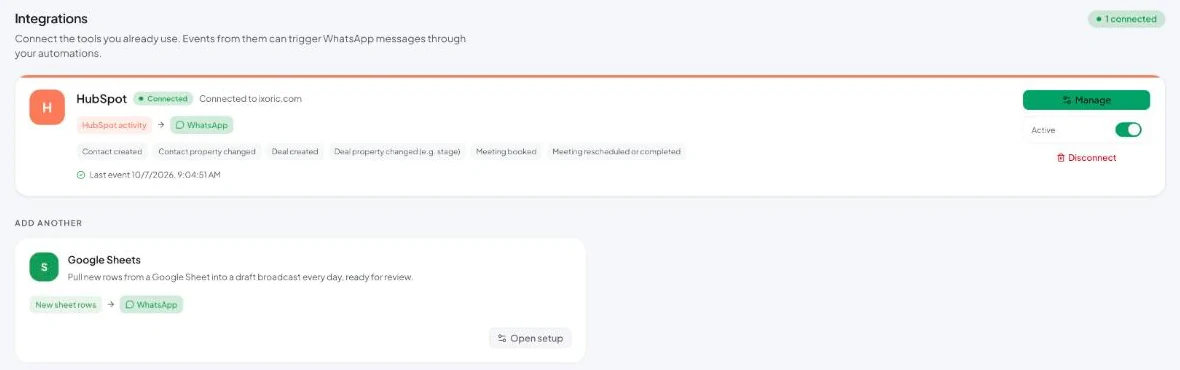
Full guide: Connect HubSpot.
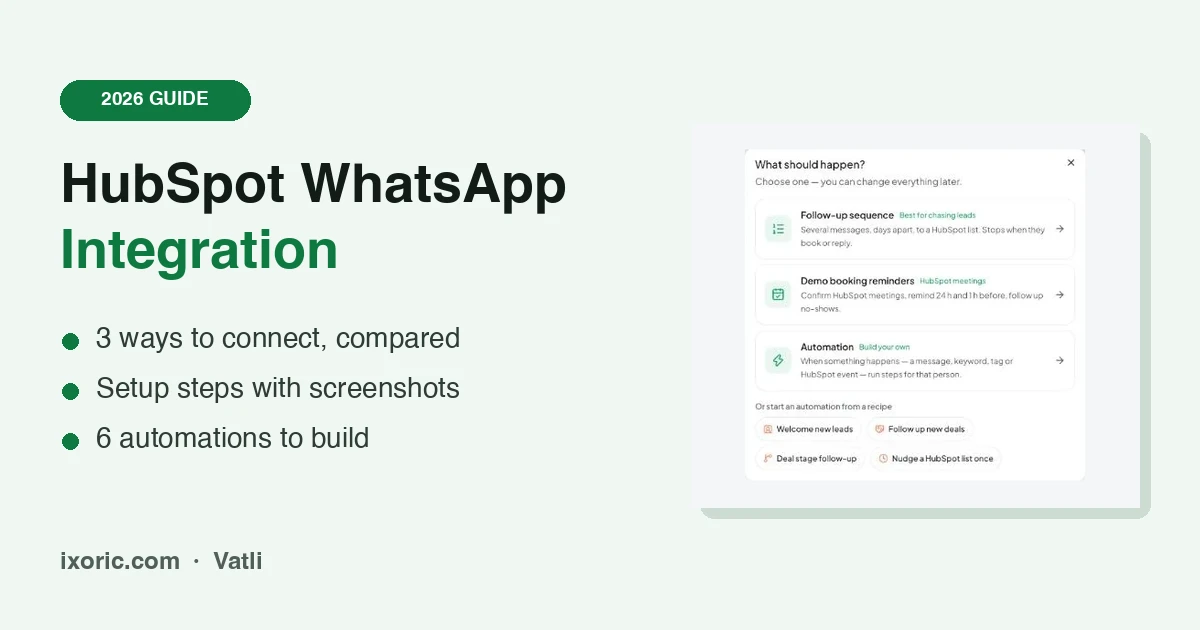
Step 3: Choose what should happen
In Automations → New, pick a ready-made journey — a follow-up sequence or demo booking reminders — or build your own automation.
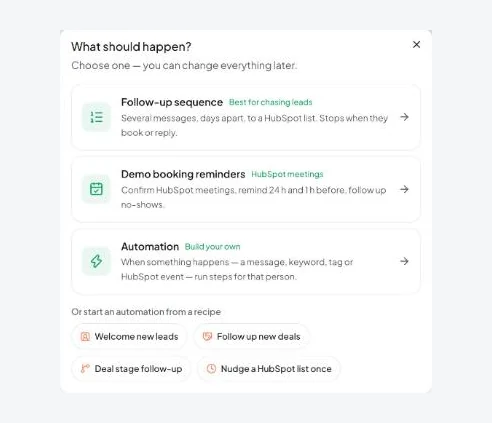
Step 4: Set the HubSpot trigger and the WhatsApp template
Choose HubSpot Event as the trigger and pick the event — for example A deal stage changes. Narrow it to a HubSpot list, lifecycle stage or lead status if needed. Then add a Send Template step and map the template’s variables to HubSpot values.
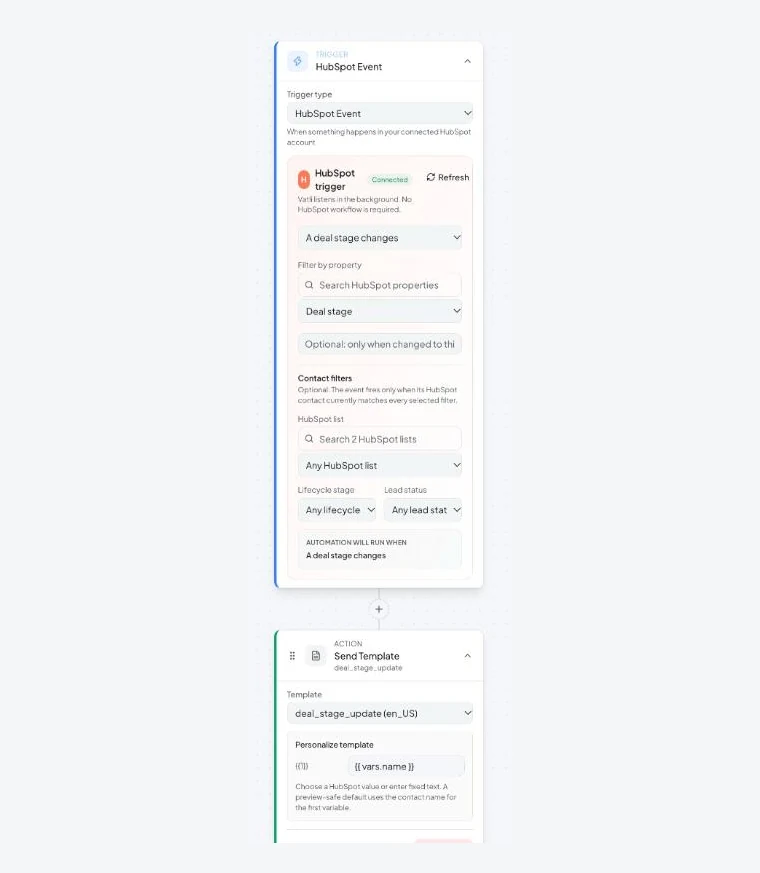
Switch the automation on, and every matching HubSpot event sends the WhatsApp message automatically. All triggers and steps are listed in HubSpot triggers.
What we learned building a HubSpot WhatsApp integration
We built Vatli’s HubSpot integration ourselves and run it on Ixoric’s own HubSpot account, which handles our demo bookings. These six lessons come from what actually happened in production — not from documentation — and they apply to any HubSpot WhatsApp integration you choose.
1. HubSpot sends the same meeting more than once
HubSpot delivers two or three webhook events for every booked meeting: one when it’s created, then more as properties change. In our logs, one lead who booked a recurring series of five bi-weekly sessions produced five near-identical “thanks for booking” messages within six seconds. We also found contacts whose single booking existed as two HubSpot meeting records with the same start time.
What to do: treat the booking’s start time — not HubSpot’s meeting ID — as the thing you confirm, and send only one confirmation per burst. Vatli now confirms the first meeting in a 10-minute window and still schedules separate reminders for each session.
2. Use the “Mobile phone number” property, not just “Phone number”
HubSpot contacts often have a landline or office number in Phone number and the WhatsApp number in Mobile phone number. When both are filled, the mobile number is the one that’s usually on WhatsApp, so Vatli reads mobilephone first. Contacts with neither are skipped, because there is nothing to deliver to.
What to do: map your form’s WhatsApp field to Mobile phone number, and store numbers with the country code (for India, +91 98xxxxxxxx, not 098xxxxxxxx).
3. HubSpot search stops at 10,000 contacts
HubSpot’s search API refuses to page past 10,000 results. A broadcast built from a filtered HubSpot search therefore can’t go beyond 10,000 people in one send — which is also Vatli’s per-broadcast limit.
What to do: split very large audiences into several HubSpot lists, for example by city or lifecycle stage.
4. Ask HubSpot for as little access as possible
Vatli requests only read access to contacts, deals and lists. HubSpot’s app marketplace reviews whether every requested permission is needed and actually used, and read-only access is also easier for your IT or security team to approve.
What to do: whichever tool you pick, check which HubSpot permissions it asks for on the consent screen. A messaging tool rarely needs to write to your CRM.
5. Ad attribution can’t be backfilled
Meta attaches the click-to-WhatsApp ad details only to a customer’s first message, and offers no way to request them later. On Ixoric’s own account, 2 of 9 ad leads in a 30-day window arrived without an ad click ID, because the ad had started before ads attribution was switched on in WhatsApp Manager.
What to do: switch on ads attribution before you launch click-to-WhatsApp ads, not after.
6. Marketing templates need a frequency cap
Meta may withhold a marketing template from a person who already receives a lot of marketing (error 131049), and retrying immediately makes it worse. Vatli holds back anyone who received two marketing templates from you in the last 24 hours, across broadcasts, automations and sequences.
What to do: don’t put the same contact in several marketing automations that can fire on the same day.
3 worked examples you can copy
These are ready-to-adapt setups for three common businesses. The template text is an example — submit your own wording to Meta for approval in your language.
Example 1: Real estate — site visit booked in HubSpot
Scenario: A buyer books a site visit through a HubSpot meeting link on your project page.
| Setting | Value |
|---|---|
| HubSpot | Meeting link for “Site visit” on the project landing page |
| Vatli journey | Demo booking reminders: instant confirmation + 24-hour reminder + 1-hour reminder |
| Template category | Utility (it confirms a booking the customer made) |
| Variables | {{1}} contact first name, {{2}} date and time, {{3}} meeting link or address |
Example template: “Hi {{1}}, your site visit is confirmed for {{2}}. Location: {{3}}. Reply 1 if you’d like a call from our advisor before the visit.”
What happens next: if the buyer replies “1”, the 24-hour window opens and your sales team answers in the Vatli inbox at no template charge. If they don’t show up and the meeting is marked as a no-show in HubSpot, the no-show recovery message offers a new slot.
Example 2: Coaching institute — free demo class enquiry
Scenario: A student fills in a HubSpot form for a free demo class.
| Setting | Value |
|---|---|
| HubSpot | Form → contact created → added to the active list “Demo class enquiries” |
| Vatli trigger | HubSpot Event: A new contact is created, filtered to that list |
| First message | Utility template confirming the enquiry, with the demo class schedule |
| Follow-up | Follow-up sequence on the list: day 2 course details, day 5 batch start date (Marketing), stop when they reply |
Example template: “Hi {{1}}, thanks for your interest in the {{2}} course. The next free demo class is on {{3}}. Reply YES to reserve your seat.”
What happens next: add a Keyword Match automation for “YES” that tags the student and assigns the chat to a counsellor round-robin. Because the sequence is set to stop on reply, they won’t get the day 2 and day 5 messages.
Example 3: B2B services — deal moves to “Proposal sent”
Scenario: Your sales rep moves a HubSpot deal to the Proposal sent stage.
| Setting | Value |
|---|---|
| HubSpot | Deal pipeline with a Proposal sent stage, contact associated with the deal |
| Vatli trigger | HubSpot Event: A deal stage changes, property Deal stage |
| Template category | Utility (an update on a transaction the customer started) |
| Variables | {{1}} contact first name, {{2}} sales rep’s name |
Example template: “Hi {{1}}, {{2}} has emailed you our proposal. Have any questions? Reply here and we’ll answer on WhatsApp.”
What happens next: the reply lands in Vatli’s shared inbox with the contact’s details, so whoever is on duty can answer within minutes instead of waiting for an email thread.
Before you go live: a practical checklist
- Clean phone numbers in HubSpot — country code included, WhatsApp number in Mobile phone number.
- Record opt-in — add a WhatsApp consent checkbox to your HubSpot forms and keep it in a contact property.
- Get templates approved first — Meta usually reviews templates within minutes, but allow up to 24 hours.
- Use active HubSpot lists for sequences, so people drop out automatically when they convert.
- Test with your own number — trigger the HubSpot event for a test contact with your phone number before switching on for everyone.
- Switch on ads attribution in WhatsApp Manager before running click-to-WhatsApp ads.
What can you automate between HubSpot and WhatsApp?
You can automate six common HubSpot-to-WhatsApp journeys: welcoming new leads, updating customers when a deal changes stage, confirming and reminding HubSpot meetings, broadcasting to HubSpot lists, running follow-up sequences until a lead books, and re-engaging leads from click-to-WhatsApp ads. Each one sends an approved WhatsApp template from HubSpot data.
1. Welcome every new HubSpot lead on WhatsApp
Trigger: A new contact is created (filtered to your website-form list). Message: a short welcome template with one question — “What are you looking for?” A reply opens WhatsApp’s 24-hour window, so your team or chatbot can continue the conversation free of Meta’s template charges.
2. Send a WhatsApp update when a HubSpot deal changes stage
Trigger: A deal stage changes to Proposal sent or Closed won. Message: “Your proposal is ready”, or “Welcome aboard — here’s what happens next”.
3. Confirm and remind HubSpot meetings on WhatsApp
Vatli’s demo booking reminders turn every HubSpot meeting into a timed WhatsApp journey of five messages: an instant confirmation, a 24-hour reminder, a 1-hour reminder, a thank-you after the call and a no-show recovery message. The existing HubSpot meeting link keeps working, and reminders move automatically when a meeting is rescheduled.
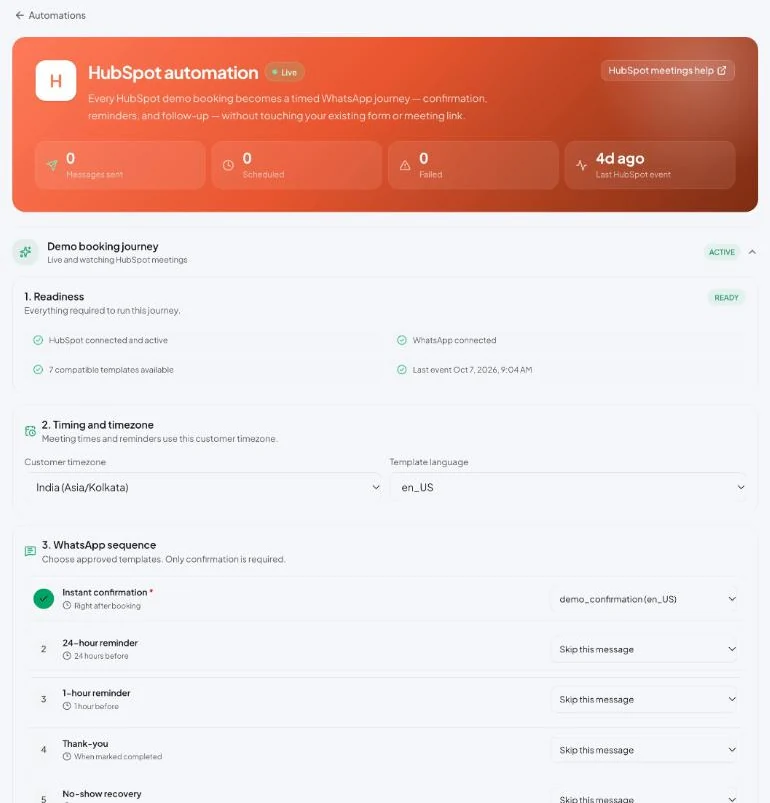
4. Broadcast a WhatsApp campaign to a HubSpot list
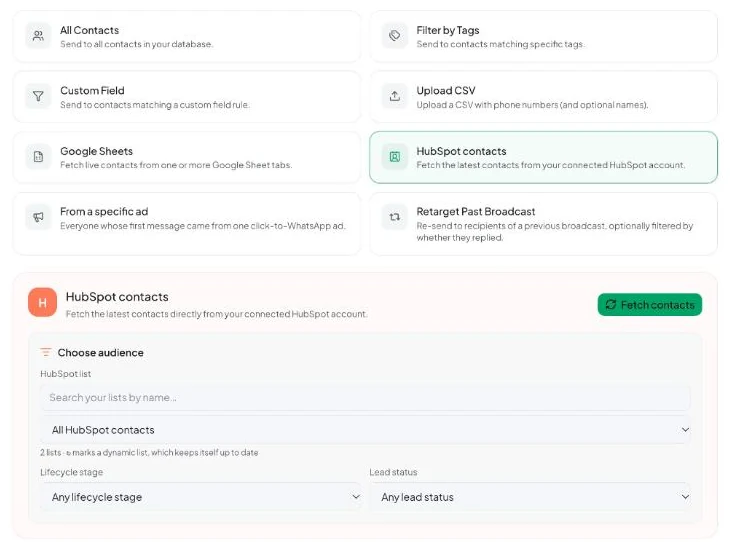
A Vatli broadcast can target an active (dynamic) HubSpot list, narrowed by lifecycle stage or lead status, with up to 10,000 recipients per send. Contacts who opted out are skipped automatically. See choose your broadcast audience.
5. Follow up on WhatsApp until a HubSpot lead books
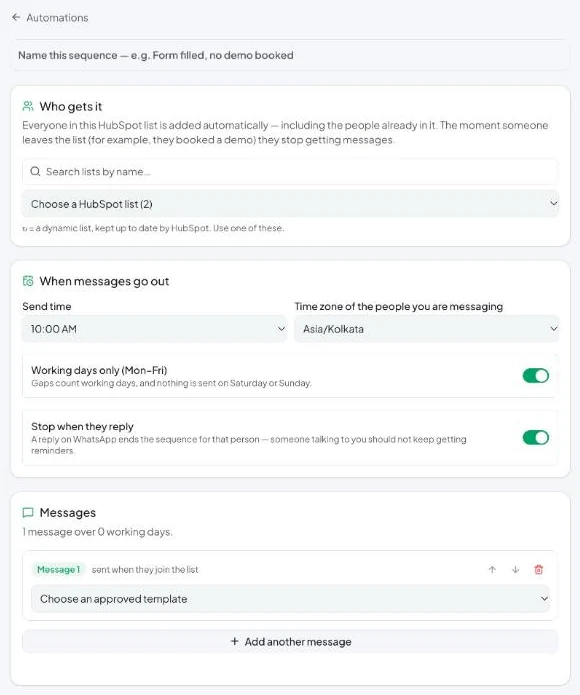
A Vatli follow-up sequence sends up to 20 templates, days apart, to everyone on a HubSpot list. Use a list such as “Demo requested — not booked”: when a lead books, HubSpot removes them from the list and the sequence stops for them. Sequences can also stop the moment a lead replies and send only on working days.
6. Re-engage leads from click-to-WhatsApp ads
For Meta ads that open WhatsApp, Vatli records which ad each lead came from and reports which ads produced deals and revenue, not just chats. You can then message the leads from your best-performing ad. See ad attribution.
Can you use Zapier or Make to connect HubSpot and WhatsApp?
Yes. Zapier and Make can pass data between HubSpot and a WhatsApp Business API provider — for example, “when a HubSpot deal changes stage, send this WhatsApp template”. Zapier and Make suit one or two simple automations, but you still need a WhatsApp provider, each scenario is built and maintained separately, task-based pricing grows with volume, and opt-out handling and delivery reports depend on your provider.
Can you build a WhatsApp chatbot with HubSpot?
HubSpot’s native WhatsApp channel is designed for conversations between your team and customers, not for multi-step, button-driven chatbots. To run a WhatsApp chatbot alongside HubSpot, use a WhatsApp platform with:
- Button flows — menus, FAQs and lead capture that route to the right person. See build a chatbot flow.
- An AI assistant that answers from your own knowledge base and hands off to a human when it can’t help. See AI assistant setup.
HubSpot stays the source of truth for contacts and deals, while the chatbot qualifies the lead on WhatsApp.
How much does a HubSpot WhatsApp integration cost?
A HubSpot WhatsApp integration has three costs: your HubSpot subscription, the WhatsApp platform (if you use one), and Meta’s per-message charges for template messages. Replies sent within 24 hours of a customer’s message are free.
- HubSpot. The native channel needs a Professional or Enterprise tier of Marketing Hub or Service Hub — check HubSpot’s pricing for your region. Vatli works with any HubSpot plan, including Free.
- The WhatsApp platform. Vatli’s plans start at US$10 a month with a 14-day free trial (plans and limits).
- Meta’s message charges. Meta charges per delivered template message. The rate depends on the template category (marketing, utility or authentication) and the recipient’s country. Details: WhatsApp pricing explained.
What WhatsApp rules apply to a HubSpot integration?
Every HubSpot WhatsApp integration must follow the same four WhatsApp Business Platform rules: get opt-in before messaging, use Meta-approved templates to start conversations, respect marketing message limits, and message only valid phone numbers with a country code.
- Get opt-in first. Message people who agreed to hear from you on WhatsApp, and honour opt-outs. Vatli processes STOP and START replies automatically (opt-outs).
- Use approved templates to start conversations. Outside the 24-hour window, you can only send a template that Meta approved. Pick the right template category — order and appointment updates are Utility; offers are Marketing.
- Respect marketing limits. Meta may hold back marketing messages for people who already receive many of them (error 131049). See marketing message limits.
- Keep phone numbers clean. WhatsApp needs a number with a country code; HubSpot contacts without a phone number can’t be messaged.
Why isn’t my HubSpot WhatsApp integration working?
Most HubSpot WhatsApp integration problems come from five causes: the number is already connected elsewhere, Meta rejected the template, the HubSpot contact has no valid phone number or opted out, the number isn’t on WhatsApp, or the native 1,000-template monthly limit has been reached.
| Problem | Fix |
|---|---|
| “Number is already in use” when connecting | The number is connected to the WhatsApp app or another provider. Disconnect it first, or use coexistence. |
| Template rejected by Meta | Check the category, add sample values for every variable, and avoid a variable at the very start or end. See template approval. |
| HubSpot event fires but nothing is sent | The contact has no phone number, has opted out, or the template isn’t approved yet. |
| Messages fail with error 131026 | The number isn’t on WhatsApp or is missing its country code. |
| Native HubSpot templates stop sending | The 1,000-per-month template limit has been reached. |
Which HubSpot WhatsApp integration should you choose?
Choose HubSpot’s native WhatsApp channel if you’re already on Marketing Hub or Service Hub Professional and mostly reply to inbound chats. Choose a WhatsApp platform such as Vatli if you’re on HubSpot Free or Starter, or need campaigns, sequences, meeting reminders or a chatbot. Choose Zapier or Make for one or two simple automations.
| Your situation | Best option |
|---|---|
| HubSpot Free or Starter | WhatsApp platform such as Vatli |
| Marketing or Service Hub Professional, mostly inbound chats | HubSpot native WhatsApp |
| Campaigns, sequences, meeting reminders or a chatbot on top of HubSpot | WhatsApp platform alongside HubSpot |
| One simple automation | Zapier or Make with a WhatsApp provider |
Want to see it on your own HubSpot account? Book a free Vatli demo or read the Vatli help center for every setup step.
FAQs about HubSpot WhatsApp integration
Does HubSpot have a WhatsApp integration?
Yes. HubSpot has a native WhatsApp channel for its conversations inbox and help desk, available with Marketing Hub or Service Hub Professional and Enterprise. Teams on other HubSpot plans connect WhatsApp through a third-party platform such as Vatli or a connector such as Zapier.
Which HubSpot plans include WhatsApp?
HubSpot’s native WhatsApp channel is included with Marketing Hub Professional, Marketing Hub Enterprise, Service Hub Professional and Service Hub Enterprise. It is not included with HubSpot Free, Starter or Sales Hub on its own.
Can I use WhatsApp with HubSpot Free?
Not with HubSpot’s native channel, which needs a Professional or Enterprise tier. Vatli connects to HubSpot Free and sends WhatsApp messages from HubSpot contacts, deals, lists and meetings.
What is the best HubSpot WhatsApp integration?
The best HubSpot WhatsApp integration depends on your plan and use case. HubSpot’s native channel suits Professional and Enterprise teams that mainly answer inbound chats; a WhatsApp platform such as Vatli suits teams on any plan that need campaigns, sequences, meeting reminders or chatbots.
Can HubSpot workflows send WhatsApp messages?
With the native channel, yes: the Send WhatsApp message workflow action sends an approved template, within the 1,000-template monthly limit. With Vatli, HubSpot events trigger WhatsApp messages without using HubSpot workflows.
Is there a HubSpot WhatsApp chatbot integration?
HubSpot’s native WhatsApp channel doesn’t include multi-step chatbots. A WhatsApp platform such as Vatli adds button-driven chatbot flows and an AI assistant that hands conversations to your team, while HubSpot keeps the contact and deal data.
Do I need the WhatsApp Business API to connect HubSpot?
Yes. Every HubSpot WhatsApp integration uses the WhatsApp Business Platform (the API), not the regular WhatsApp or WhatsApp Business app. Coexistence lets you keep using the WhatsApp Business app on the same number.
How much does it cost to send WhatsApp messages from HubSpot?
Meta charges per delivered template message, based on the template category and the recipient’s country; replies within 24 hours of a customer’s message are free. You also pay for your HubSpot plan and, if you use one, the WhatsApp platform.
Can I send bulk WhatsApp messages to a HubSpot list?
Yes, as approved template messages to contacts who opted in. In Vatli, you choose a HubSpot list as the broadcast audience, filter it by lifecycle stage or lead status, and send to up to 10,000 people at a time.
Will my existing WhatsApp chats move into HubSpot?
With HubSpot’s standard connection, only new messages sync. With HubSpot’s coexistence setup, the last 180 days of chats are imported. Vatli keeps WhatsApp conversations in its own shared inbox.
How we researched this guide
This guide was written by Prashant Kumar, founder of Ixoric Technologies and the team that builds Vatli, who has worked in digital marketing and marketing automation since 2013.
- First-hand experience: the lessons above come from building Vatli’s HubSpot integration and running it on Ixoric’s own HubSpot account for our demo bookings.
- Screenshots and video: taken from a live Vatli workspace connected to a real HubSpot account, with customer data hidden.
- HubSpot facts: requirements and limits were checked against HubSpot’s own knowledge base on 11 October 2026. HubSpot changes plans and limits from time to time, so check the linked pages before you buy.
- Disclosure: Vatli is our product. We’ve tried to be clear about where HubSpot’s native channel is the better choice.
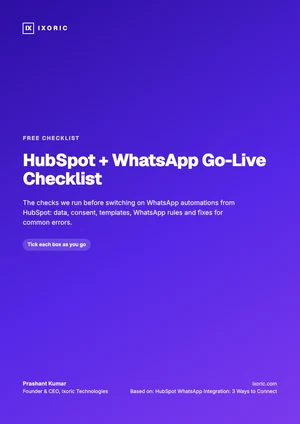
Free checklist · PDF
HubSpot + WhatsApp Go-Live Checklist
- The 6 checks to run before switching automations on
- The 4 WhatsApp rules every integration must follow
- Fixes for the 5 most common errors
Your checklist is ready.
Download the PDFWas this article helpful?
What was wrong with it?
Take this article to your AI
Get a summary, ask questions, or turn these ideas into a plan for your team.
Opens your AI with the article ready to go — for Gemini, the prompt is copied so you just paste.
Get new articles from Ixoric
Practical SEO, AI search and growth guides, about twice a month. No spam, unsubscribe any time.
You're subscribed
We'll send you new articles as they're published.
Follow us on Google
Add Ixoric as a preferred source to see our articles first in Google results.