Choose your broadcast audience (8 ways)
All the audience options in step 2 of the broadcast wizard — tags, custom fields, CSV, Google Sheets, HubSpot lists, ad leads and retargeting — plus exclude tags.
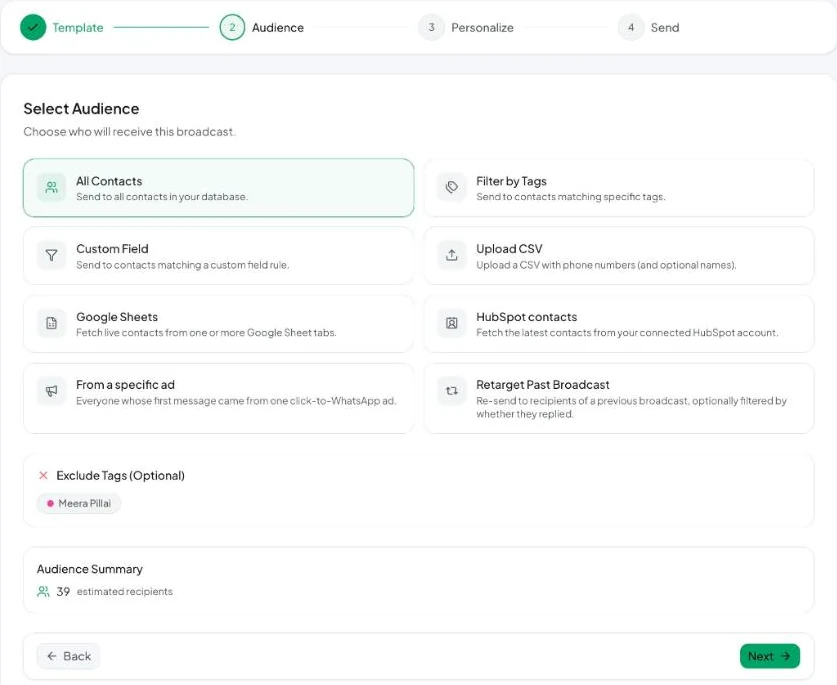
The audience options
| Option | Who receives it | Good for |
|---|---|---|
| All Contacts | Every contact in Vatli | Announcements to everyone |
| Filter by Tags | Contacts with any of the tags you pick | Segments such as vip, patna, webinar-aug |
| Custom Field | Contacts where a custom field Is, Is not or Contains a value | e.g. city is Kolkata, plan is not paid |
| Upload CSV | Phone numbers in a CSV file | A one-off list from another system |
| Google Sheets | Rows read live from one or more tabs of a Google Sheet | Lists your team keeps in Sheets |
| HubSpot contacts | Members of a HubSpot list | Teams that run their CRM in HubSpot |
| From a specific ad | People who first messaged you by clicking a particular click-to-WhatsApp ad | Following up on ad leads |
| Retarget Past Broadcast | Recipients of an earlier broadcast | Reminders and second chances |
Filter by tags and exclude tags
- Choose Filter by Tags and select one or more tags. A contact with any of them is included.
- Under Exclude Tags (Optional) select tags to leave out. Exclusion wins: a contact tagged both
leadandcustomeris skipped if you excludecustomer.
Exclude tags work with every audience option, not just tags.
Upload a CSV
The file needs a column called phone. A name column is optional.
phone,name
+919812345678,Riya Sharma
+14155550123,John Miller
- Use the international format with the country code. Numbers without a country code are read using your default country (see Phone number format).
- After upload Vatli shows “N valid contact(s) found in CSV”. Rows without a valid phone number are dropped.
- New numbers are added to your contacts when you send.
Google Sheets
- Share your sheet with the service-account email shown in the wizard, as a Viewer.
- Paste the sheet URL and choose one or more tabs.
- Map the phone column (and name if you have one). Vatli previews the valid rows.
The sheet is read at the moment you send. A campaign can include up to 10,000 rows. To create a draft broadcast from new rows every day, use Google Sheets sync instead.
HubSpot contacts
Connect HubSpot first (Connect HubSpot). Then pick a HubSpot list. Vatli reads the list’s current members and uses each contact’s phone number. Contacts with no phone in HubSpot are skipped. Up to 10,000 contacts per send.
From a specific ad
Shows every click-to-WhatsApp ad that brought you leads, with the number of contacts each one brought. Pick an ad to message only those people. This needs ad attribution to be switched on.
Retarget a past broadcast
- Choose Retarget Past Broadcast and pick a completed broadcast.
- Choose who to include:
– All recipients
– Received, no reply — delivered but they never replied
– Read, no reply — they opened it but didn’t reply
– Replied - Pick a different template — usually a reminder or a follow-up offer.
Whatever audience you choose, contacts who opted out or are blocked are always removed before sending. See Opt-outs.