Sync new Google Sheet rows into a draft broadcast
Connect a Google Sheet once — every day Vatli picks up the new rows and prepares a draft broadcast for you to review and send.
Who can do this: Owner, AdminPlan: All plansNeed: A Google Sheet with a phone-number column and an approved template
Data Sync with Google Sheet suits lead lists that grow every day — form responses, event sign-ups, a sales team’s sheet. Once a day Vatli reads the rows added since the last sync and turns them into a draft broadcast. Nothing is sent until you click Send.
Set it up
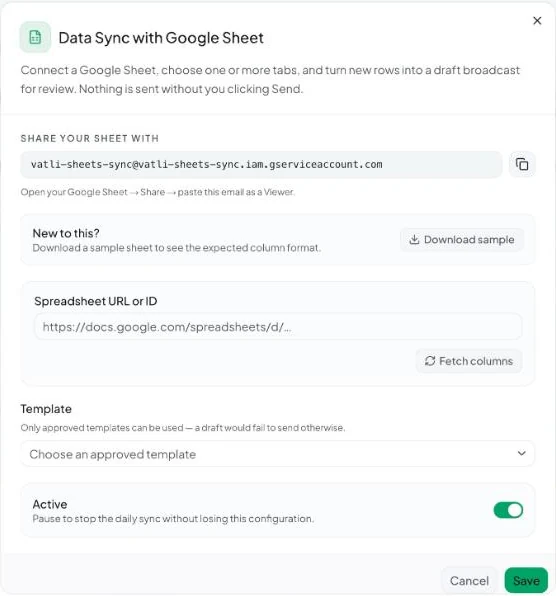
- Go to Contacts → Data Sync with Google Sheet.
- Share your sheet: copy the service email shown under Share your sheet with, open your Google Sheet → Share, paste the email and give it Viewer access. Your sheet stays private.
- New to this? Click Download sample to see the expected column format.
- Paste the sheet’s address in Spreadsheet URL or ID and click Fetch columns.
- Under Tabs to sync, tick one or more tabs. Selected tabs must use the same column headers; each tab is tracked separately.
- Choose an approved Template.
- Choose the Phone number column. Include the country code —
+919876543210and919876543210both work;9876543210without the code won’t. - Map each Template variable to a sheet column (for example
{{1}}→ Name). - Leave Active on and click Save.
How syncing works
- The sync runs automatically once a day. Click Sync now to run it immediately.
- Only rows added since the last run are picked up. “Sheet is up to date — no new rows found” means there’s nothing new.
- New rows become a draft broadcast on the Broadcasts page. Open it, review the recipients and click Send.
- The dialog shows Last synced and how many rows have been synced so far, or Last sync failed with the reason.
Pause or disconnect
- Turn Active off to pause the daily sync without losing the setup.
- Click Disconnect to remove the connection. Contacts and broadcasts already created stay.
Need to message a sheet right now rather than daily? Use Broadcasts → New Broadcast → Google Sheets, which reads the sheet live. See Choose a broadcast audience.