Add a single contact
Create a contact by hand with name, WhatsApp number, email, company and tags.
Who can do this: Owner, Admin, AgentPlan: All plans
Contacts are created automatically when someone messages your WhatsApp number. Add one by hand when you want to message someone first.
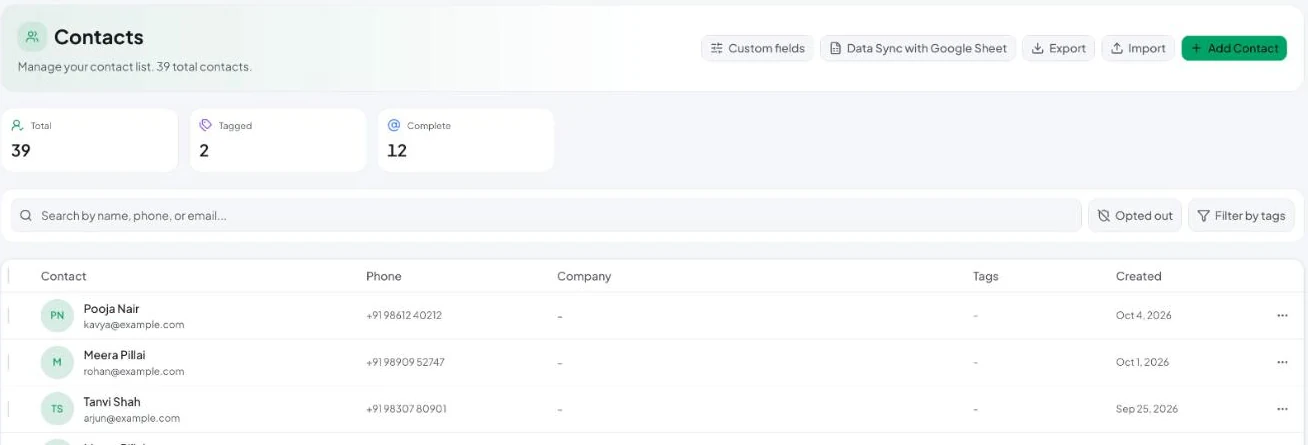
Add a contact
- Go to Contacts and click Add Contact.
- Fill in the form:
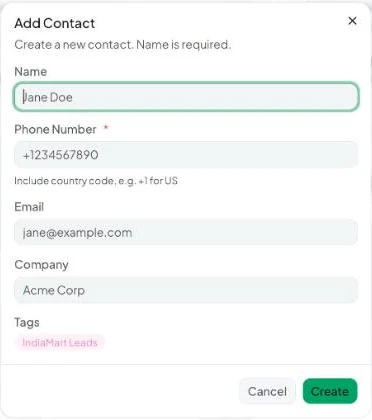
| Field | Notes |
|---|---|
| Name | Shown in the inbox and usable as a template variable. |
| Phone Number (required) | Include the country code, e.g. +919876543210 or +14155550123. See Phone number format. |
| Optional. | |
| Company | Optional. Lets you filter the inbox by company. |
| Tags | Pick existing tags or type a new name and choose Create tag “…”. |
- Click Create. You’ll see “Contact created successfully”.
Duplicate numbers
Vatli keeps one contact per number. If the number already exists you’ll see “A contact with this phone number already exists” with a View link. If a very similar number exists (for example the same digits with and without a country code), Vatli warns “A contact with a very similar number already exists” so you can check before saving.
Message the new contact
Open the contact and click Send template — the first message to someone who hasn’t written to you must be a template. See Send a template from the inbox.