View and edit a contact
The contact panel — details, tags, notes, custom fields, deals and activity — plus assigning an owner and sending a template.
Who can do this: Everyone can view; Owner, Admin and Agent can editPlan: All plans
Click any contact in Contacts to open its panel.
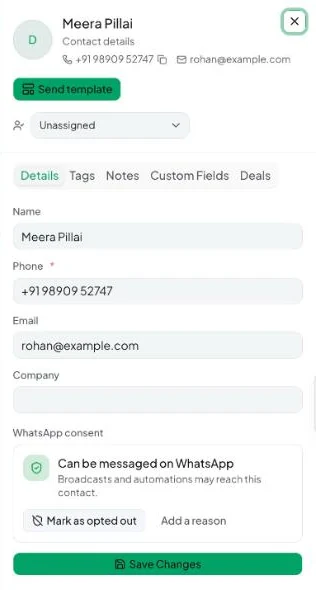
The header
- Name, number and email — copy the number with the copy icon.
- Send template — message the contact. See Send a template from the inbox.
- Assigned to — the teammate who owns this contact. When a teammate is limited to their own contacts, they only see contacts assigned to them (and unassigned ones). See Restrict who sees which contacts.
The tabs
| Tab | What you can do |
|---|---|
| Details | Edit name, phone, email and company, then Save Changes. See and change WhatsApp consent. |
| Tags | Click a tag to add or remove it. |
| Notes | Internal notes on the contact, newest first. Add Note to write one. |
| Custom Fields | Fill values for your custom fields, then Save Custom Fields. |
| Deals | Deals linked to this contact. |
| Activity | The contact’s history: messages, deals, broadcasts and automations. |
Delete a contact
Open the row menu (⋯) in the contacts list → Delete, and confirm. Deleting can’t be undone. To delete several, tick them and click Delete selected.