Connect your WhatsApp number with Facebook (recommended)
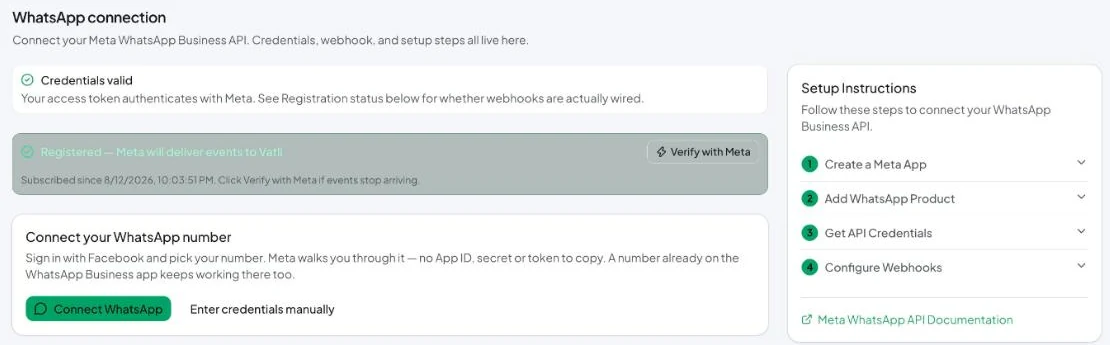
One-click Embedded Signup — sign in with Facebook, pick or add your number, and Vatli wires up the API, webhooks and registration for you.
Connect WhatsApp uses Meta’s Embedded Signup. You sign in with Facebook inside a Meta pop-up, choose (or create) your business and WhatsApp Business Account, add your number, and Vatli does the rest — no App ID, App Secret or token to copy.
Before you start
- A Facebook account that is an admin of your business’s Meta Business portfolio — or that can create one during signup.
- The phone number you want to use. It must be able to receive a verification code by SMS or voice call. It can be:
- a new number that has never been on WhatsApp,
- a number currently on the WhatsApp Business app — it can keep working there too (see Coexistence), or
- a number on another API provider — you’ll need its two-step verification PIN, or to disable two-step verification there first.
- Allow pop-ups for
app.vatli.co. Meta’s signup opens in a pop-up window.
A number can be connected to only one Vatli workspace. If it’s already linked to another workspace, signup stops with “already linked to another workspace”.
Connect your number
- In Vatli, go to Settings → WhatsApp.
- Click Connect WhatsApp. Meta’s pop-up opens.
- Log in with the Facebook account that manages your business.
- Choose your business portfolio, or create one with your legal business name, website and country.
- Choose or create a WhatsApp Business Account. Enter the display name customers will see. It should match your business or brand name — Meta reviews it.
- Add your phone number and pick Text message or Phone call to receive the code. Enter the code.
– If the number is on the WhatsApp Business app, Meta switches to the coexistence flow: open the app on your phone and scan the QR code shown in the pop-up. - Review the permissions Vatli asks for and click Continue / Finish.
- The pop-up closes and Settings → WhatsApp reloads showing Credentials valid and Registered — Meta will deliver events to Vatli.
For a brand-new number, Vatli registers it with a fresh 6-digit two-step verification PIN and shows it to you once. Save it in your password manager — Meta asks for it if you ever move the number. You can change it later in WhatsApp Manager.
After connecting: two things to do in Meta
- Add a payment method in WhatsApp Manager. Template messages are billed by Meta directly; without a payment method they fail. See Add a payment method for WhatsApp charges.
- Wait for display-name approval. Meta reviews the display name, usually within a day. Until then, messages show your number instead of your name.
Then check the connection by sending yourself a message.
If something goes wrong
| What you see | What it means and what to do |
|---|---|
| Nothing happens when you click Connect WhatsApp | Your browser blocked the pop-up. Allow pop-ups for app.vatli.co and click again. |
| “Signup did not finish on Meta’s side” | The pop-up was closed early. Click Connect WhatsApp and complete every step. |
| “Signup finished without a phone number” | You stopped after creating the WhatsApp Business Account. Run it again and add your number when Meta asks. |
| “Connected, but Meta could not activate the number yet” | Registration failed — usually the number still has a two-step PIN from a previous provider. Enter that PIN under Manage connection → Manual setup → Two-step verification PIN and save, or remove the PIN in your old provider first. |
| “already linked to another workspace” | That number belongs to another Vatli workspace. Disconnect it there first, or use a different number. |
| Templates fail right after connecting | No payment method in WhatsApp Manager yet. |
Can’t use Facebook signup at all? You can connect with your own Meta app instead.