Connect with your own Meta app (manual setup)
For developers and agencies — paste your Meta App ID, App Secret and a permanent system-user token, then point your app's webhook at Vatli.
Use manual setup if you already run your own Meta app, or can’t use Connect with Facebook. It works without any Meta approval for Vatli.
Step 1 — Prepare your Meta app
- Go to developers.facebook.com → My Apps → Create App, choose Business, and create it.
- In the app dashboard, click Add Product, find WhatsApp and click Set up. Link it to your business portfolio.
- In WhatsApp → API Setup, note your Phone Number ID and WhatsApp Business Account ID.
- In App Settings → Basic, note the App ID and click Show to copy the App Secret.
- Create a permanent access token: in Business Settings → Users → System users, add a system user (Admin), assign your app and WhatsApp account to it with full control, then Generate new token with the
whatsapp_business_messagingandwhatsapp_business_managementpermissions.
Don’t use the temporary token from the API Setup page — it expires within 24 hours and every message will start failing with error 190.
Step 2 — Enter the credentials in Vatli
- Go to Settings → WhatsApp and click Enter credentials manually.
- Fill in Connect your Meta App:
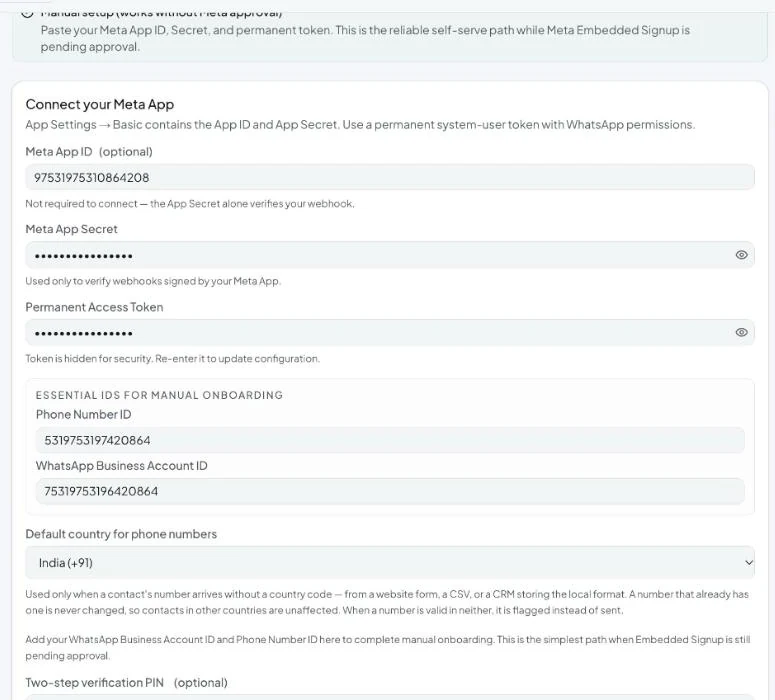
| Field | Where to find it | Required |
|---|---|---|
| Meta App ID | App Settings → Basic | Optional — only used for “Find my numbers” auto-fill |
| Meta App Secret | App Settings → Basic → App Secret | Yes, the first time — used to verify that webhooks really come from your app |
| Permanent Access Token | System user token from Step 1 | Yes, the first time |
| Phone Number ID | WhatsApp → API Setup | Yes |
| WhatsApp Business Account ID | WhatsApp → API Setup | Yes |
| Default country for phone numbers | Your main market | Recommended — see Phone number format |
| Two-step verification PIN | WhatsApp Manager → Phone numbers → Two-step verification | Only for a production number that isn’t registered yet |
- Click Save Configuration. Vatli checks that the App Secret, token and number belong together, subscribes your WhatsApp account to your app, and — if you entered a PIN — registers the number.
Already saved credentials once? Secrets and tokens are hidden after saving. Leave them as they are to keep them, or paste new values to replace them. If you switch to a different Meta app, paste that app’s App Secret and token again — Vatli won’t reuse the old ones for a new app.
Step 3 — Point your Meta webhook at Vatli
After saving, Configure Meta webhook shows your workspace’s own webhook details.
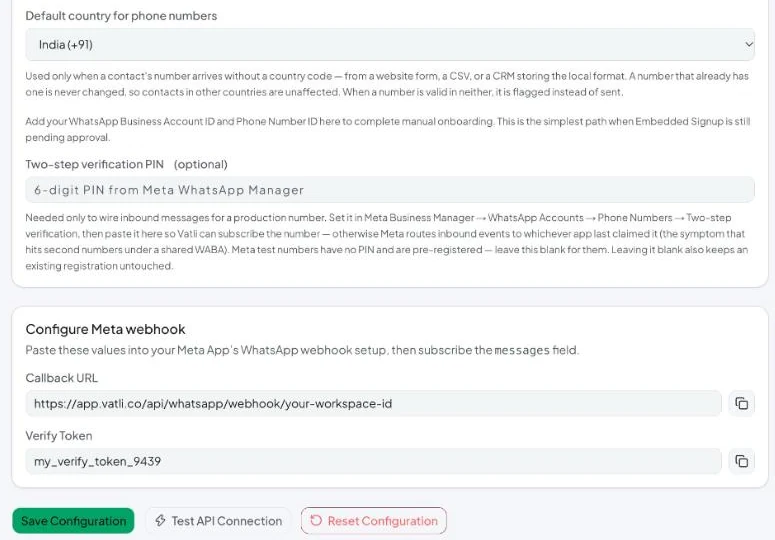
- In your Meta app, open WhatsApp → Configuration and click Edit next to Webhook.
- Paste the Callback URL and Verify Token from Vatli (use the copy buttons) and click Verify and save.
- Under Webhook fields, click Manage and subscribe to
messages.
Step 4 — Test
- Click Test API Connection in Vatli. You should see “Your Meta app, webhook, and number are correctly wired.”
- Send a WhatsApp message to your business number from another phone and check it appears in the Inbox.
If a test fails, see Check that your connection works.