A tour of the Team Inbox
The three panes of the inbox — conversation list, chat thread and contact panel — plus search and filters.
The Inbox is where every WhatsApp conversation with your business number lands. Everyone on your team works from the same inbox, so a customer gets one consistent conversation no matter who replies.
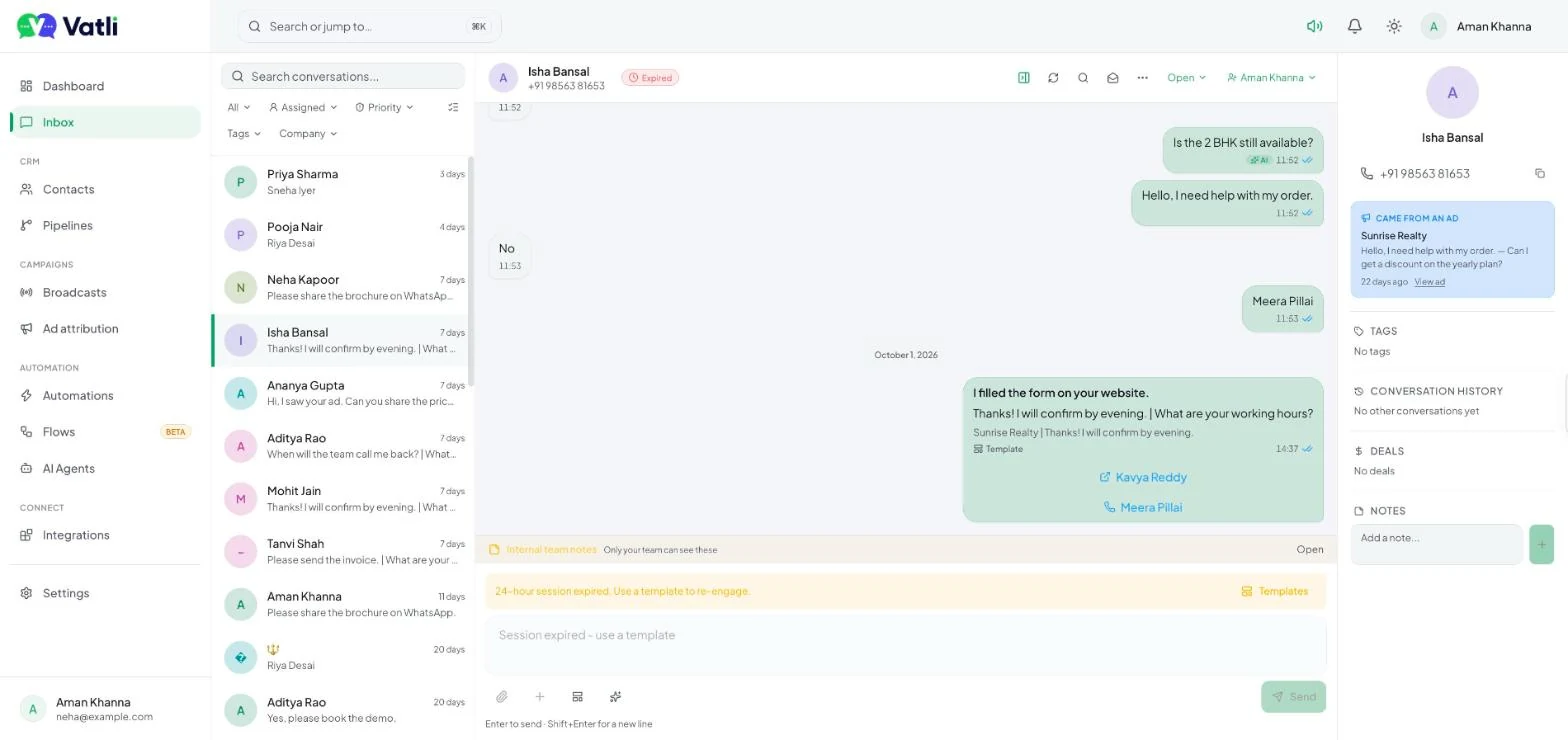
The three panes
| Pane | What’s in it |
|---|---|
| Conversation list (left) | Every chat, newest activity first, with the contact’s name, the last message and how long ago it arrived. Unread chats are bold and counted on the Inbox badge in the sidebar. |
| Thread (middle) | The full conversation with delivery ticks, the 24-hour window timer, the composer and the toolbar for status, assignment and more actions. |
| Contact panel (right) | The contact’s number, the ad they came from, tags, deals, notes and other conversations. Toggle it with the panel icon in the thread header. See The contact panel. |
On a phone the panes stack: tap a conversation to open it and use Back to conversations to return.
Reply-time alerts
Vatli watches how long each customer has waited. An unread conversation that isn’t closed or snoozed is flagged as due after 1 hour without a reply and overdue after 4 hours, so the team can see at a glance who’s been kept waiting. The dashboard’s Needs attention card counts unassigned and waiting chats too.
Search conversations
Type in Search conversations… at the top of the list to match a contact’s name, phone number or message text.
To search inside one conversation, click the magnifier in the thread header, type, and use the arrows to jump between matches.
Filter the list
| Filter | Options |
|---|---|
| Status (first dropdown) | All, Unread, Open, Pending, Closed, Pinned, Snoozed |
| Assigned | All, Assigned to me, Unassigned, or a specific teammate |
| Priority | Urgent, High, Normal, Low |
| Tags | One or more tags — a conversation shows if its contact has any selected tag |
| Company | Contacts from one company |
Click Clear all to reset. The checklist icon switches on bulk actions.
The “How the inbox works” guide
New inboxes show a short guide in the empty thread area. It explains the four rules that trip up most new teams — the 24-hour window, templates, button replies and failed messages. Close it with ×; the same rules are in The 24-hour customer service window.
Read-only access
Viewers can open and read every conversation they’re allowed to see, but the composer shows “Read-only — viewers can browse but not reply”. To let someone reply, change their role to Agent in Team members.