Assign conversations, set status and priority, pin and snooze
Give every chat an owner, track it as Open, Pending or Closed, flag urgent ones and hide chats until they need attention.
Who can do this: Owner, Admin, AgentPlan: All plans
The toolbar at the top of every conversation controls who owns it and where it stands.
Assign a conversation
- Open the conversation.
- Click the assignee button at the top right (it shows the current owner, or Assign).
- Pick a teammate, or yourself (marked (me)). Choose Unassign to put it back in the shared queue.
The assignee sees it under Assigned → Assigned to me. To assign many chats at once, use bulk actions.
Assign automatically: an automation with the Assign Conversation step can share new chats round-robin across your agents or always send them to one person.
Set the status
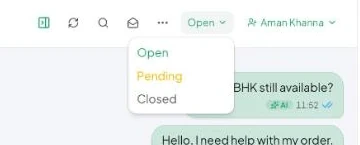
Click the status button (Open) and choose:
| Status | Use it when |
|---|---|
| Open | Someone needs to act. New and re-opened chats are Open. |
| Pending | You’re waiting on the customer or on something else. |
| Closed | Done. A new message from the customer re-opens it. |
Priority, pin and snooze
Click ⋯ (More conversation actions):
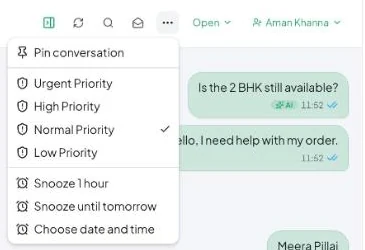
- Pin conversation keeps it at the top of the list. Filter with Pinned.
- Urgent / High / Normal / Low Priority flags the chat. Filter with Priority.
- Snooze 1 hour, Snooze until tomorrow or Choose date and time hides the chat until then — “Hide this conversation until it needs your team’s attention.” Snoozed chats are under the Snoozed filter and don’t count as waiting for a reply until the time passes. Use Remove snooze to bring one back early.
Mark as unread
Click the envelope icon in the thread header (Mark conversation as unread) to bold it again — handy when you opened a chat but want someone to follow up.