HubSpot demo booking reminders
Turn every HubSpot meeting booking into a timed WhatsApp journey — instant confirmation, 24-hour and 1-hour reminders, thank-you and no-show recovery.
Who can do this: Owner and Admin by defaultPlan: All plansNeed: HubSpot connected, WhatsApp connected, approved templatesTime: 10 minutes
Your existing HubSpot meeting link and forms keep working. Vatli listens for meetings booked in HubSpot and sends WhatsApp messages around each one.
Open the journey
Go to Automations → Demo reminders, or Integrations → HubSpot → Manage.
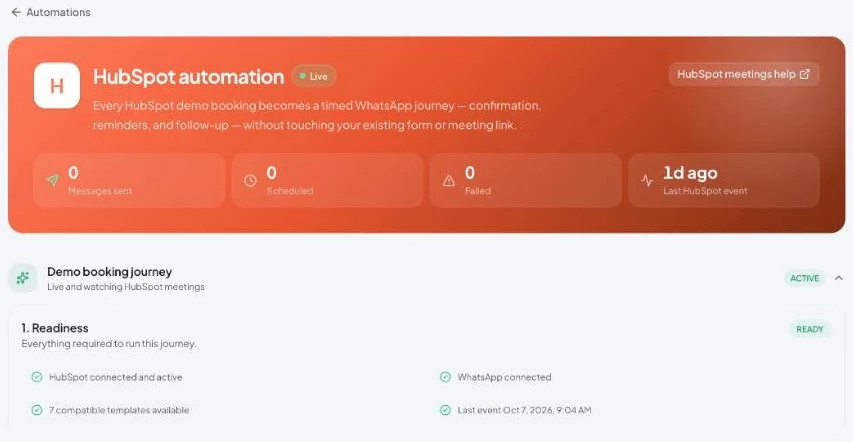
1. Readiness
Vatli checks four things and shows Ready when all pass:
- HubSpot connected and active
- WhatsApp connected
- Compatible approved templates available
- A recent event received from HubSpot
2. Timing and time zone
- Customer timezone — meeting times and reminders are calculated in this zone.
- Template language — the language of the templates you’ll use.
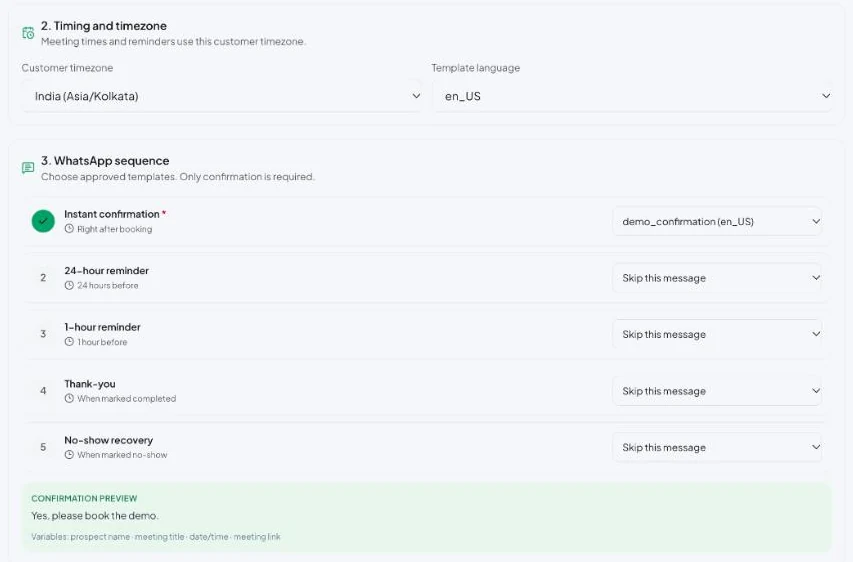
3. WhatsApp sequence
| Message | Sent | Required |
|---|---|---|
| Instant confirmation | Right after booking | Yes |
| 24-hour reminder | 24 hours before the meeting | Optional |
| 1-hour reminder | 1 hour before | Optional |
| Thank-you | When the meeting is marked completed in HubSpot | Optional |
| No-show recovery | When the meeting is marked no-show | Optional |
Choose Skip this message for any you don’t want. The Confirmation preview shows the message. Templates can use these variables: prospect name, meeting title, date/time and meeting link.
4. Test and activate
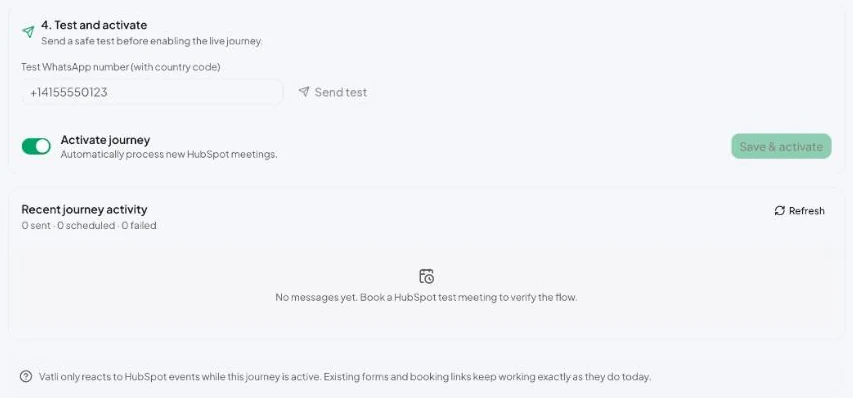
- Enter your own number in Test WhatsApp number (with country code) and click Send test.
- Switch on Activate journey.
- Click Save & activate.
Recent journey activity lists what was sent, scheduled or failed.
- Vatli only reacts to HubSpot events while the journey is active.
- If a meeting is rescheduled, the pending reminders are re-planned for the new time. If it’s cancelled, pending reminders are cancelled. Messages already sent are never repeated.
- The contact in HubSpot needs a phone number with a country code.