
TL;DR
The short version of this article
- Webflow technical SEO is mostly configuration: the platform generates clean HTML, SSL, sitemaps and fast hosting, so most problems come from settings left at defaults.
- The fixes with the biggest impact are correct canonicals and 301 redirects, image compression and Core Web Vitals, schema via custom code, and keeping every important page within three clicks of the home page.
- Check results in Google Search Console: the Pages report for indexing issues, the URL Inspection tool for individual pages, and the Core Web Vitals report for speed.
In this article
Webflow technical SEO is the set of settings and fixes that let search engines crawl, understand and rank a Webflow site. Webflow already generates semantic HTML, SSL, an XML sitemap and fast CDN hosting, so most technical problems on Webflow sites come from configuration left at defaults: duplicate URLs without canonicals, missing redirects after a redesign, oversized images and no structured data. This checklist covers the 21 items we check on every Webflow site, in the order that usually matters most.
Is Webflow good for SEO?
Yes, for most business sites. Compared with WordPress, Webflow has fewer plugins and less flexibility for large content sites, but it ships with clean code, built-in SSL, automatic sitemaps, per-page meta fields and custom code injection, which covers everything in this checklist. Where WordPress still wins is complex publishing (large blogs, multilingual sites, e-commerce with thousands of SKUs) and plugin-driven schema. If you are choosing a platform, our website development team builds on both and can advise which fits your site.
| Webflow | WordPress | |
|---|---|---|
| Code quality out of the box | Clean, semantic | Depends on theme |
| SSL, CDN, sitemap | Built in | Via host and plugins |
| Schema | Custom code | Plugins (Rank Math, Yoast) |
| Large blogs, multilingual | Workable, more manual | Stronger |
| Maintenance | Minimal | Updates and plugin conflicts |
The 21-point Webflow technical SEO checklist
1. URL structure
Use short, descriptive slugs with hyphens (/services/local-seo), keep folder depth to two levels, and never change a slug on a live page without adding a 301 redirect. Webflow lets you set slugs per page and per CMS item.
2. Canonical tags
Set the global canonical in Site settings → SEO so that every page declares its preferred URL, and add page-specific canonicals in the page’s custom head code where you have deliberate duplicates (campaign variants, filtered CMS lists). Check Search Console’s Pages report for “Duplicate without user-selected canonical”.
3. www vs non-www and HTTP vs HTTPS
Pick one host (www or bare domain) in Site settings → Publishing, set it as the default, and confirm the other version 301s to it. Enable SSL and the automatic HTTP→HTTPS redirect in Hosting.
4. 301 redirects
After any redesign or slug change, add redirects in Site settings → Publishing → 301 redirects. Point old URLs straight to the final destination (no chains), and use wildcard rules (/blog/(.*) → /articles/%1) for whole sections. Test a sample of old URLs after publishing.
5. XML sitemap
Turn on auto-generation in Site settings → SEO, exclude utility pages (thank-you pages, password-protected pages, style guides) from the sitemap in their page settings, and submit the sitemap URL in Search Console.
6. robots.txt
Keep it minimal: allow everything you want indexed, disallow only genuinely private paths, and reference the sitemap. Make sure staging sites (webflow.io subdomains) are set to noindex via Site settings → SEO → “Disable Webflow subdomain indexing”.
7. Noindex utility pages
Thank-you pages, search results, duplicate landing pages and CMS template pages you do not use should be noindexed in their page settings. They waste crawl budget and dilute the site in search results.
8. Meta titles and descriptions
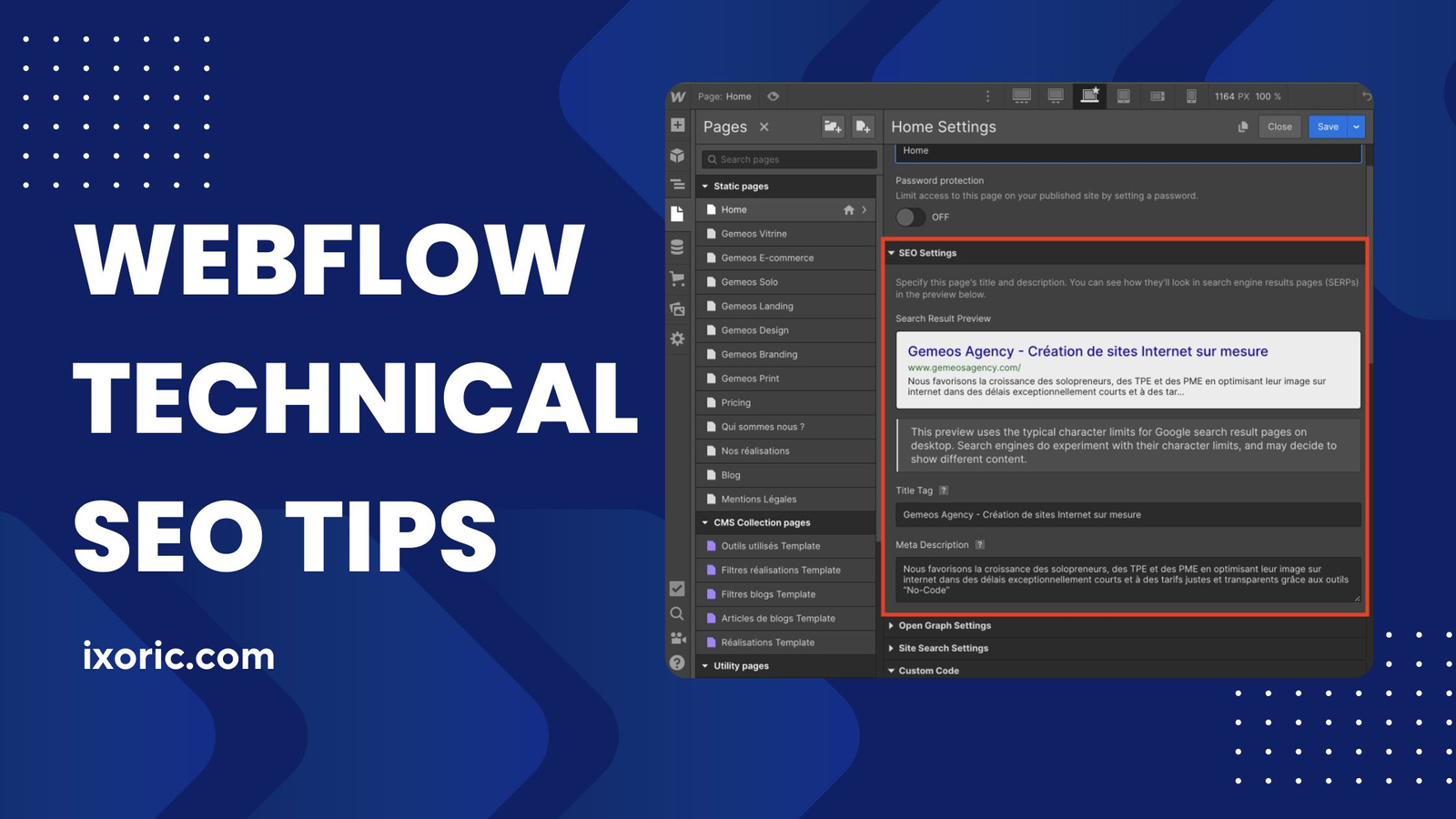
Every page needs a unique title (50–60 characters, primary keyword near the front) and a description (140–160 characters that earns the click). For CMS collections, use field-based templates so each item gets its own.
9. Heading hierarchy
One H1 per page that states what the page is about, H2s for sections, H3s inside them. In Webflow this means checking the heading tag setting on each text element, because designers often pick heading levels for size rather than structure.
10. Image compression and formats
Images are the usual cause of slow Webflow pages. Upload WebP or AVIF, keep hero images under 200 KB, enable responsive images (Webflow generates variants automatically for inline images, not for background images), and lazy-load everything below the fold.
11. Core Web Vitals
Google’s thresholds are LCP under 2.5 seconds, INP under 200 milliseconds and CLS under 0.1. On Webflow the common fixes are: compress the hero image, limit custom fonts to two families with preloading, remove unused interactions and third-party scripts, and give images and embeds fixed dimensions so nothing shifts while loading. Check real-user data in Search Console’s Core Web Vitals report and lab data in PageSpeed Insights.
12. Custom code and third-party scripts
Audit every script in the site-wide head and footer code. Chat widgets, heatmaps and tag managers each add load time; load the non-essential ones after the page is interactive, or remove them.
13. Schema markup
Webflow has no schema plugin, so add JSON-LD in the page’s custom head code: Organization or LocalBusiness on the home page, Article on blog posts (with a real author), FAQPage where you have a visible FAQ, Product for e-commerce, BreadcrumbList site-wide. Use CMS fields to fill the values on collection pages. Validate with Google’s Rich Results Test.
14. Breadcrumbs
Add visible breadcrumbs on deep pages and mark them up with BreadcrumbList schema. They help users and give Google the site hierarchy.
15. Internal linking and crawl depth
Every important page should be reachable within three clicks of the home page. Link related CMS items to each other (Webflow’s multi-reference fields make this easy), link from blog posts to service pages, and keep the main navigation focused on the pages that matter.
16. Orphan pages
Export the site’s pages (or crawl it with Screaming Frog) and compare against internal links. Pages with no inbound links are rarely crawled; either link to them or noindex them.
17. Broken links
Crawl the site quarterly with Screaming Frog or Ahrefs Site Audit and fix 404s with redirects or updated links. Broken links do not directly lower rankings, but they waste crawl budget and lose users.
18. Custom 404 page
Design the 404 page (Webflow provides one in the Utility pages) with navigation, a search box and links to the most useful pages, so a bad link still keeps the visitor.
19. Mobile layout
Check every breakpoint in the Designer, particularly tap-target sizes, text size and horizontal overflow. Google indexes the mobile version, so anything hidden on mobile is effectively not there.
20. Alt text
Give every content image descriptive alt text (what is in the picture, with a keyword only where it is natural). Decorative images get empty alt. Webflow exposes alt text in asset settings and in CMS image fields.
21. Search Console and Analytics
Verify the site in Google Search Console (DNS or HTML tag via Site settings), submit the sitemap, and connect GA4 through Google Tag Manager. Review the Pages, Core Web Vitals and Links reports monthly, and use URL Inspection after major changes to confirm Google sees the page as you intend.
How to audit a Webflow site in an hour
- Run the home page and two deep pages through PageSpeed Insights; note LCP, INP and CLS.
- Open Search Console → Pages and read the reasons pages are not indexed.
- Crawl the site with Screaming Frog (free up to 500 URLs); filter for 404s, missing titles, duplicate titles and pages with no inbound links.
- Check Site settings → SEO for the canonical, sitemap and subdomain-indexing options.
- Run one page through the Rich Results Test to see which schema Google detects.
This is roughly what we do in the technical part of our free SEO audit, followed by content and links. If you would rather have someone implement the fixes, our website development team handles Webflow builds and clean-ups, and the Aarohi City case study shows what a rebuilt site with SEO built in achieved in six months.
Webflow technical SEO FAQs
How often should I audit a Webflow site?
A full crawl and Core Web Vitals check every quarter, and a quick Search Console review every month. Audit immediately after any redesign, migration or change to the navigation.
Can I do Webflow SEO without coding?
Almost all of it. Meta fields, canonicals, redirects, sitemaps, alt text and noindex settings are all in the Webflow UI. The only item that needs code is schema markup, and that is copy-pasted JSON-LD rather than programming.
Do I need extra SEO tools with Webflow?
Google Search Console and PageSpeed Insights are free and essential. A crawler (Screaming Frog) and a backlink tool (Ahrefs or Semrush) are worth it once the site is more than a few dozen pages.
Why is my Webflow site not indexed?
The usual causes are the webflow.io staging domain being indexed instead of the custom domain, pages set to noindex by mistake, a sitemap that was never submitted, or a brand-new domain with no links. Search Console’s Pages report shows the exact reason per URL.
What is the single most important technical fix on Webflow?
Image weight. Most slow Webflow sites have uncompressed hero images and background images that are not responsive. Fixing those alone often moves LCP from 4+ seconds to under 2.5.
Free checklist · PDF
AEO Checklist: 10 Checks to Get Cited by AI
- Pass/fail tests for ChatGPT, Gemini and AI Overviews
- Priority and time estimate for each check
- A monthly AI citation log
Your checklist is ready.
Download the PDFWas this article helpful?
What was wrong with it?
Take this article to your AI
Get a summary, ask questions, or turn these ideas into a plan for your team.
Opens your AI with the article ready to go — for Gemini, the prompt is copied so you just paste.
Get new articles from Ixoric
Practical SEO, AI search and growth guides, about twice a month. No spam, unsubscribe any time.
You're subscribed
We'll send you new articles as they're published.
Follow us on Google
Add Ixoric as a preferred source to see our articles first in Google results.