Find your way around Vatli
The sidebar, the search-or-jump menu (⌘K / Ctrl K), notifications, message sounds and dark mode.
The sidebar
The left sidebar groups everything into four areas:
| Group | Pages |
|---|---|
| — | Dashboard, Inbox (with an unread badge) |
| CRM | Contacts, Pipelines |
| Campaigns | Broadcasts, Ad attribution |
| Automation | Automations (rules), Flows (button chatbots), AI Agents (AI replies) |
| Connect | Integrations (HubSpot, Google Sheets) |
Settings sits at the bottom. Your name, role (Owner, Admin, Agent or Viewer) and sign-out are in the profile menu at the bottom left.
Not sure whether you need an Automation, a Flow or an AI Agent? Automations react to an event with fixed steps, Flows are menus customers tap through, and AI Agents write free-text answers from your knowledge base. See Automations vs Flows vs AI Agents.
Search or jump to anything (⌘K)
Press ⌘ K on Mac or Ctrl K on Windows, or click Search or jump to… at the top.
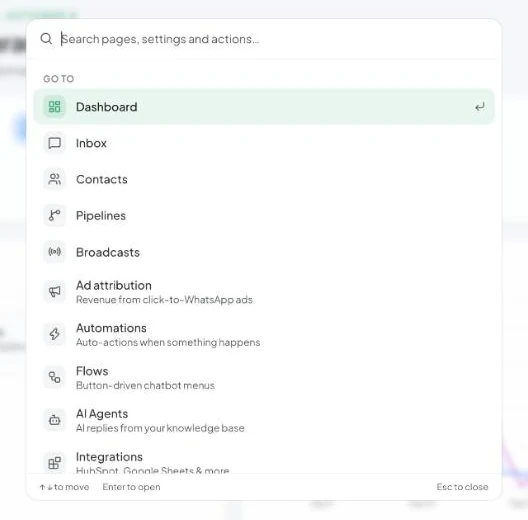
- Start typing a page, setting or action — for example
templates,apiornew broadcast. - Use ↑ ↓ to move and Enter to open.
- Press Esc to close.
The Create group opens New broadcast and New automation directly. The Settings group jumps to any settings section.
The top bar
- Speaker icon — turns the new-message sound on or off for this browser.
- Bell — your notifications, such as a teammate mentioning you in an internal note. The badge shows how many are unread.
- Sun / moon — switches between light and dark mode. Choose an accent colour in Settings → Appearance.
Settings at a glance
Settings is split into Account (just you) and Workspace (everyone):
- Account: Your profile, Login & security, Appearance.
- Workspace: WhatsApp, Templates, Quick replies, Fields & tags, Deals & currency, Team members, Billing & plan, API keys, Webhooks, AI connections.
Agents and Viewers see fewer workspace sections — what each role can open is set in Roles and permissions.