Create and submit a message template
Build a template with header, body variables, footer and buttons, add sample values and submit it to Meta for approval.
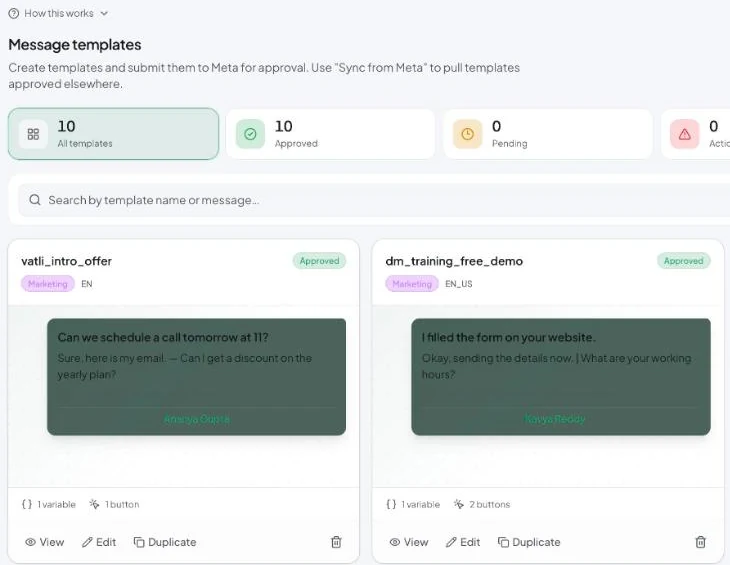
Create a template
- Go to Settings → Templates and click New Template.
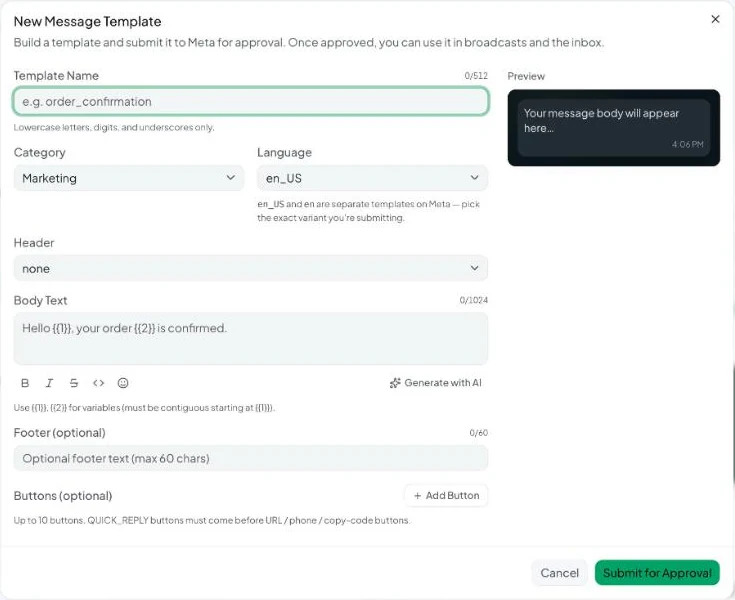
- Template Name — lowercase letters, digits and underscores only, e.g.
site_visit_reminder. It can’t be changed after submission. - Category — Marketing, Utility or Authentication. Choose honestly; see Template categories.
- Language — the exact variant you’ll send.
en_USandenare separate templates on Meta. - Header (optional):
– Text — up to 60 characters, may contain one variable{{1}}. Add a sample value for it.
– Image — upload a JPEG or PNG up to 5 MB (at least 800×418 px recommended), or paste a public HTTPS link. Vatli uploads it to Meta for review.
– Video — a public HTTPS link to an MP4 or 3GPP file, ideally under 16 MB and 60 seconds.
– Document — a public HTTPS link to a PDF (up to 100 MB).
For video and document links, Meta fetches the file once during review, so keep the link live for about 24 hours.
6. Body Text — up to 1,024 characters. Use {{1}}, {{2}} for variables. They must be numbered in order starting at {{1}}. Format with the toolbar: Bold, Italic, ~~Strikethrough~~, Monospace and emoji.
7. Sample values — fill in an example for every variable. Meta uses these to review your template, and a missing sample is a common reason for rejection.
8. Footer (optional) — up to 60 characters, e.g. Reply STOP to unsubscribe.
9. Buttons (optional) — click Add Button. Up to 10 buttons:
| Button | What it does | Fields |
|---|---|---|
| Quick Reply | Sends the label back as the customer’s reply — great for “Yes / No” or triggering an automation | Label |
| URL | Opens a website | Label and URL. Add {{1}} at the end for a dynamic suffix, with an example value. |
| Phone | Calls a number | Label and phone with country code |
| Copy Code | Copies a coupon code | Example code, e.g. SUMMER20 |
Quick reply buttons must come before URL, phone and copy-code buttons.
10. Check the Preview, then click Submit for Approval.
You’ll see “Submitted to Meta — typical review time is 24 hours. Status updates automatically.” Most templates are reviewed within minutes.
Draft the body with AI
Click Generate with AI above the body. Describe what the template should say — e.g. order confirmation with tracking link, friendly tone — and click Generate. Review the draft and click Use this or Discard. To change existing text, describe how it should change. (Needs the AI assistant to be enabled.)
Authentication (OTP) templates
Authentication templates have a fixed body and an OTP button that Meta controls. Create them in Meta WhatsApp Manager, then click Sync from Meta in Vatli to bring them in. See Sync templates from Meta.