Create, move and close deals
Add a deal for a contact, drag it between stages, mark it won or lost, and create deals automatically.
Who can do this: Owner, Admin, AgentPlan: All plans
Create a deal
- In Pipelines, click Add Deal (top right, or under any stage).
- Fill in the form:
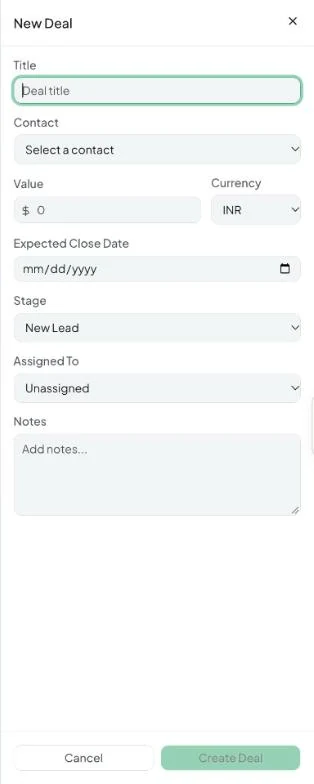
| Field | Notes |
|---|---|
| Title (required) | E.g. 2 BHK — Tower B or Website redesign. |
| Contact (required) | The customer. Link to Conversation ties the deal to a chat. |
| Value and Currency | The deal amount. Currency defaults to your workspace currency. |
| Expected Close Date | Cards show “Expected close date coming up” and turn red once it has passed (“Past expected close date”). |
| Stage (required) | Where the deal starts. |
| Assigned To | The teammate responsible. |
| Notes | Anything the team should know. |
- Click Create Deal.
Move a deal
Drag the card to another stage column. The stage totals and metrics update immediately.
Mark won, lost or reopen
Open the deal → Status → Mark as Won or Mark as Lost. A won deal shows a green Won badge. Use Reopen deal to undo. Won and lost deals count towards Won This Month and Lost This Month.
Delete a deal
Open the deal → Delete Deal → Confirm.
Create deals automatically
- An automation’s Create Deal step opens a deal in the pipeline and stage you choose — e.g. whenever someone taps “Book a site visit”. See Automation steps.
- Deals for leads from Click-to-WhatsApp ads show up in Ad attribution, so you can see revenue per ad.