Create a sales pipeline and customise its stages
Set up a Kanban pipeline for your sales process, then rename, recolour, reorder or add stages.
Who can do this: Owner and Admin by default (the "Pipeline settings" permission)Plan: All plans
A pipeline is a board of stages your deals move through, from first contact to won. You can run several — for example Sales, Renewals and Partnerships.
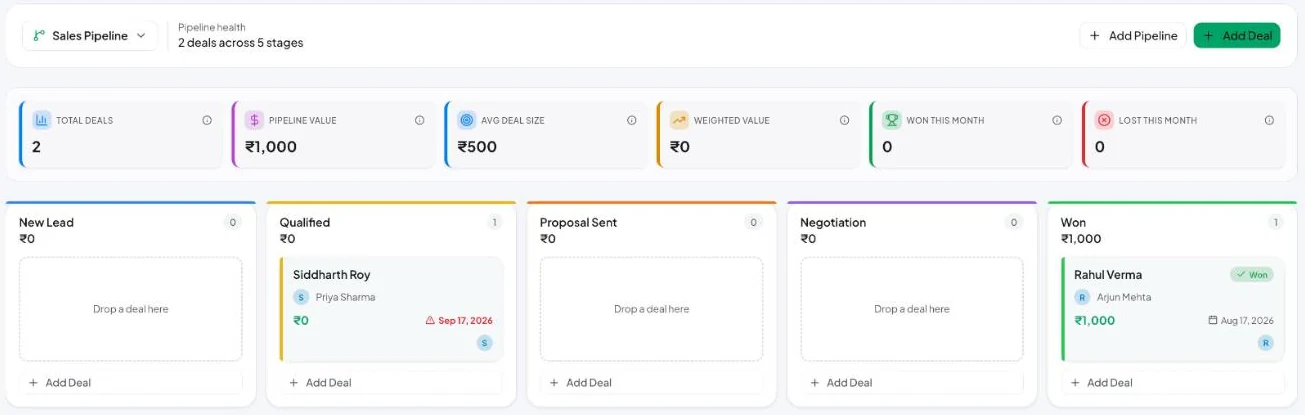
Create a pipeline
- Go to Pipelines and click Add Pipeline (or Create Pipeline if you have none yet).
- Enter a Pipeline Name, e.g. Enterprise Sales.
- Click Create Pipeline. Default stages are created for you: New Lead → Qualified → Proposal Sent → Negotiation → Won.
Switch between pipelines with the selector at the top left.
Customise the stages
- Open the pipeline selector and choose Manage Pipelines (the settings for the current pipeline).
- In Manage Pipeline you can:
– rename the pipeline,
– rename any stage,
– Change color of a stage,
– Drag to reorder stages,
– add a stage with New stage name → Add,
– delete a stage (it must be empty — “Move or delete deals in this stage first”). - Click Save Changes.
Stages further to the right count as more likely to close. The Weighted Value metric uses that order — see Pipeline metrics.
Delete a pipeline
In Manage Pipeline, click Delete Pipeline. This archives every deal in it and can’t be undone.